Browse the guide
Start here
Everyday work
- Find and arrange documents
- Upload, preview & download
- Organize your documents
- Work with several documents
- Comments & mentions
- History & activity
- Archive, delete & recovery
Administration
- Administrator setup
- Users & permissions
- Manage categories & tags
- Associated record documents
- Stage requirements & gates
- Connect PandaDoc
Help & reference
Upload, preview & download
Upload up to 25 documents at a time (1 GB each), preview PDFs, images, and Office files, download documents, and open document details.
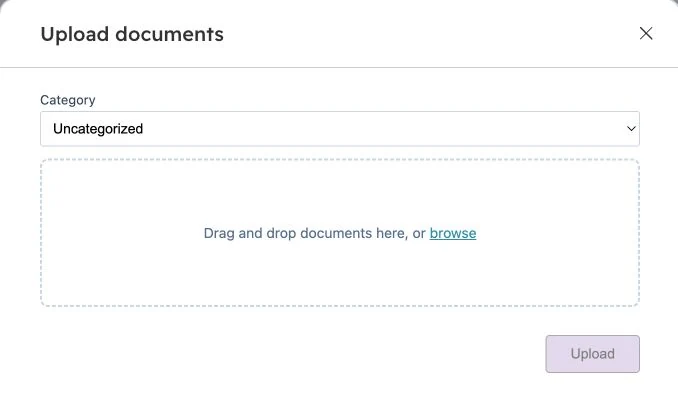
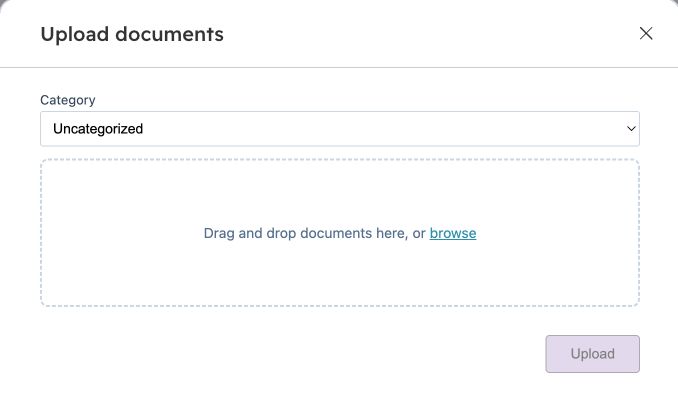
Upload documents
- Open the record and select Upload documents.
- Choose a Category if your team uses them. It applies to the whole batch.
- Drag files into the upload area or select browse, review the list, then select Upload.
You can upload 25 documents at a time, up to 1 GB each, with the Editor or Admin role.
Note
If an upload is interrupted, use the document’s Retry action, or remove it and try again. Finished transfers can take a moment to appear, so check the record before uploading a duplicate.
Preview a document
Select a document’s name to open it. PDFs and common image formats display directly. Office and other supported formats convert to a PDF preview, so the first preview can take longer.
If a preview can’t be prepared, a download option may appear instead. Files over 50 MB that need conversion may have to be downloaded. That preview limit is separate from the 1 GB upload limit.
Download a document
Use Download from the document’s actions menu or the preview toolbar, then check your browser’s downloads. Every role can download individual documents.
To download several at once, see download up to 25 documents.
Open document details
Select the details button beside a document. A comment icon and count may appear when there are comments. Document details shows Created, Last updated, Category, Type, and Size, then the comments and history.
Not using DocAI yet? Try it on one workflow for a week.
Apply for $100 trial