Browse the guide
Start here
Everyday work
- Find and arrange documents
- Upload, preview & download
- Organize your documents
- Work with several documents
- Comments & mentions
- History & activity
- Archive, delete & recovery
Administration
- Administrator setup
- Users & permissions
- Manage categories & tags
- Associated record documents
- Stage requirements & gates
- Connect PandaDoc
Help & reference
Stage requirements & gates
Show which documents a deal or ticket needs before its next stage, set up rules, and connect them to a native HubSpot stage requirement.
Read the requirements on a record
The Documents card’s Stage requirements section lists the rules for the record’s next pipeline stage, if it has any. A check means they are met; a warning names what is missing, such as a document in a category or with a tag.
- Each rule needs at least one qualifying document, and every rule for the stage must be met.
- A rule on a parent category also accepts documents in its direct subcategories.
- Archived and deleted documents don’t count.
- An empty section can mean the next stage has no rules, the record is at its last stage, or pipeline data is unavailable. It doesn’t confirm future stages are ready.
Set up rules
- Create the categories or classification tags you want to require.
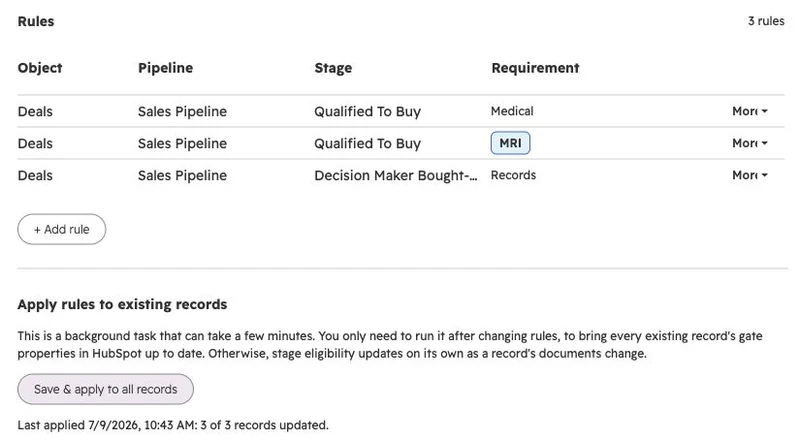
- Open Stage gates and select + Add rule.
- Choose the Object type (deals or tickets), the Pipeline, and the destination Stage.
- Choose a category or tag Requirement, then the required category or tag.
- Select Add rule, and repeat for each extra requirement.
- Select Save & apply to all records and watch Applying rules to records until the result appears.
- Only classification tags can be required, not gray user tags.
- Apply runs can take a few minutes. If the last run didn’t finish, select Save & apply to all records again.
- Example: a stage can require both a Medical document and an MRI-tagged document, and one document can satisfy both.
Connect the rule to a HubSpot stage requirement
The readiness display doesn’t block stage changes on its own. DocAI updates a matching Document gate: property, which you can make a native HubSpot stage requirement.
- In HubSpot, go to Settings → Data Management → Objects and choose deals or tickets.
- Open Pipelines and select the matching pipeline.
- At the destination stage, open its conditional stage property controls.
- Add the matching Document gate: property, mark it Required, and save.
The control may be labeled Conditional logic rules or Conditional stage properties. You need HubSpot’s Edit property settings permission.
Know what the check means
- DocAI doesn’t enforce gates for workflows or other integrations, so verify automated stage changes separately.
- The synced HubSpot value can lag, so use the Documents card for current requirements. Don’t set Document gate: by hand; it could look satisfied without the document. The met value is Document Uploaded.
- If Reauthorize to enable deal stage sync appears, an administrator needs to grant the app’s extra deal permissions.
- Review rules and required properties whenever you remove a category, tag, stage, or pipeline.
Not using DocAI yet? Try it on one workflow for a week.
Apply for $100 trial