Browse the guide
Start here
Everyday work
- Find and arrange documents
- Upload, preview & download
- Organize your documents
- Work with several documents
- Comments & mentions
- History & activity
- Archive, delete & recovery
Administration
- Administrator setup
- Users & permissions
- Manage categories & tags
- Associated record documents
- Stage requirements & gates
- Connect PandaDoc
Help & reference
Organize your documents
Use categories and tags to organize documents on a HubSpot record: move a document, apply or remove tags, and rename it.
Categories and tags
- Categories give each document one place in your structure, or leave it Uncategorized. Your administrator sets the structure.
- Tags are labels that can cross categories. Administrators create colored classification tags, and you can create gray user tags while you work.
For example, a team might use an Intake category and a Signed classification tag. Those are examples, not built-in options.
Move one document
- Open the document’s actions menu and choose Move to category.
- Pick a Category, or choose Uncategorized to clear it.
- Select Move.
Note
Moving changes the category on the same record. It does not move the document to another HubSpot record.
Apply or remove tags
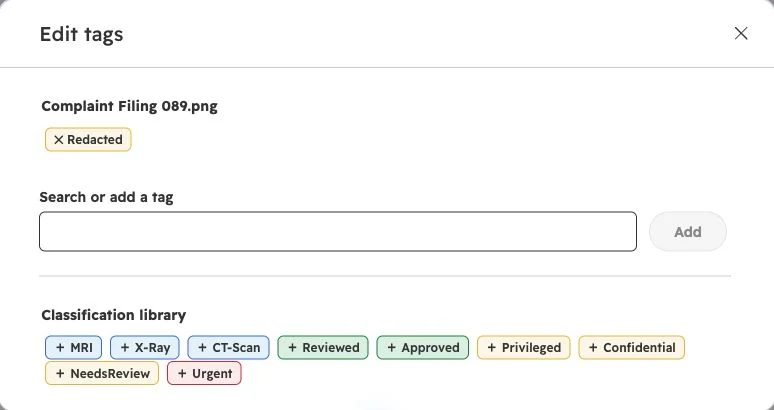
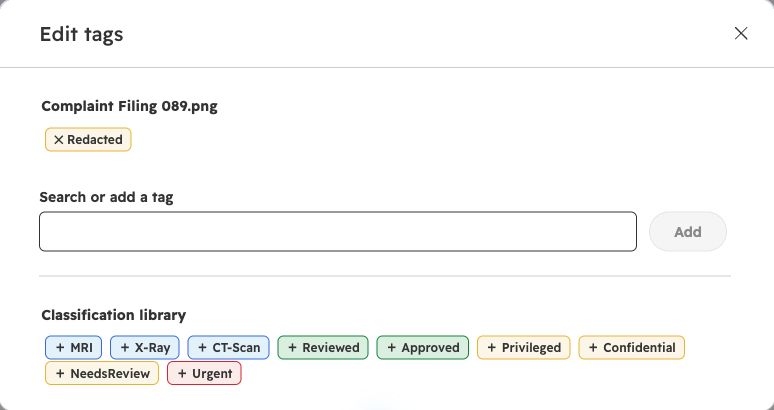
- Select a tag chip, +N, or the tag icon beside an untagged document.
- Use Search or add a tag to find a label, or pick a colored tag from the Classification library.
- Choose a suggestion, press Enter, or select Add. A new name creates a gray user tag; a matching name reuses the existing tag.
- To remove a tag from this document, select its × in the applied tags.
If similar names already exist, review them before choosing Create anyway. Tag names can be up to 24 characters, with a reminder after 12.
Note
Removing a tag here affects only this document. An administrator deleting a tag in settings removes it from every document. See Manage categories & tags.
Rename a document
- Choose Rename in the actions menu.
- Edit the Document name, up to 140 characters.
- Select Rename or press Enter.
The file extension is shown separately and doesn’t change. To organize a group of documents, use bulk actions.
Not using DocAI yet? Try it on one workflow for a week.
Apply for $100 trial