Browse the guide
Start here
Everyday work
- Find and arrange documents
- Upload, preview & download
- Organize your documents
- Work with several documents
- Comments & mentions
- History & activity
- Archive, delete & recovery
Administration
- Administrator setup
- Users & permissions
- Manage categories & tags
- Associated record documents
- Stage requirements & gates
- Connect PandaDoc
Help & reference
Your first document
Open the right HubSpot record, upload your first document, preview it, and bring in a teammate with a mention.
1. Open the right record
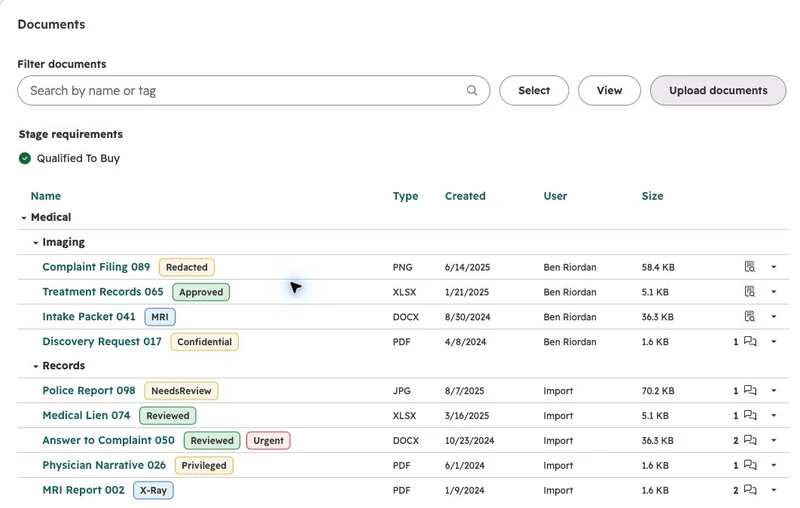
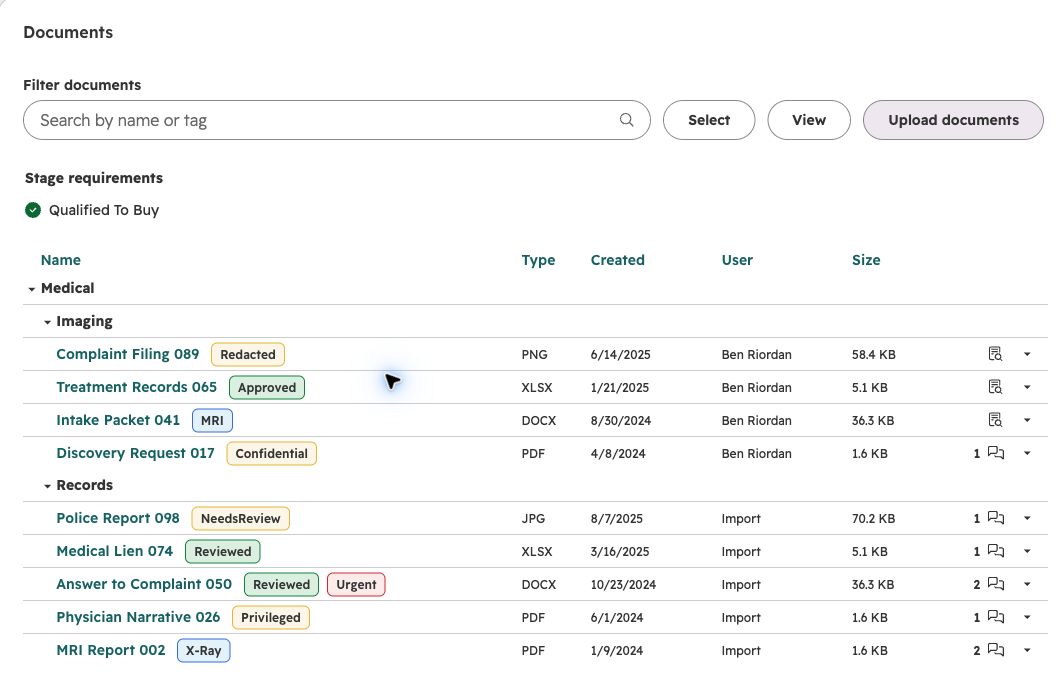
Open a contact, company, deal, or ticket and find the Documents card in the middle column. Your administrator decides which tab it sits on.
If you can’t find the card, ask your HubSpot administrator to add it to your team’s record layout.
Note
A document belongs to the record where you upload it, so check the record name first. On an Associated Record Documents card, check the selected associated record instead.
2. Add a document
- Select Upload documents.
- If your team uses categories, pick one. Leave it empty to keep the document Uncategorized.
- Drag a file into the upload area, or select browse.
- Select Upload and wait for it to finish.
Uploading needs the Editor or Admin role. Viewers can open and download existing documents.
3. Open and review it
- Select the document’s name to open the preview.
- To save a copy, use Download in the document’s actions menu or the preview toolbar.
- The details button beside a document opens Document details, with its information, comments, and history.
4. Bring in a teammate
- In Document details, open Comments and select Create a comment.
- Write your message, type @, and choose a teammate from the suggestions.
- Review the comment, then select Post.
Important
Posted comments can’t be edited or deleted in this release. To correct one, add a follow-up comment.
Not using DocAI yet? Try it on one workflow for a week.
Apply for $100 trial